

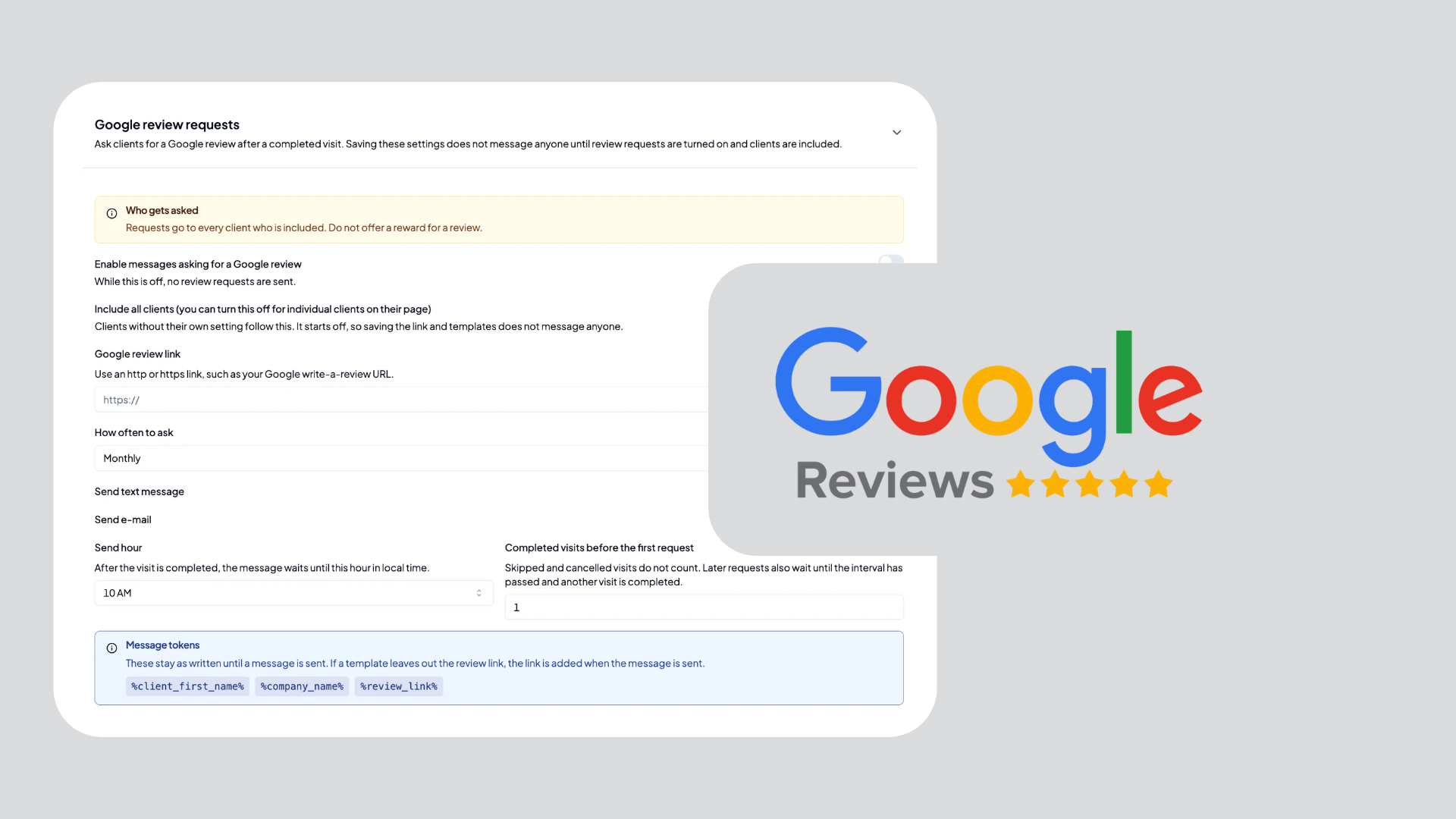
A review request goes out after a completed visit. Set it once for the company, then change a client only when that person should be handled differently.
You will do three things:
- Turn it on in company settings.
- Include, skip, or mark a single client.
- Send one request right away, if you need to.
Before you start
- Owners, admins, and office staff can change these settings. Technicians and cleaners cannot.
- Saving settings and sending a request need a paid plan on the company owner's account.
- Only a visit marked completed counts. Skipped and cancelled visits do not.
- Google does not tell Aquatechy when someone posts a review. If a client already left one, mark that on the client page.
- Requests go to every client who is included. Do not offer a reward for a review, and do not ask only the clients who seemed happy.
1. Company settings
Open Settings, then the company, then Preferences. Stay on the Communication tab. Scroll to Google review requests and open that section. It starts collapsed.
Filling in the form does not send anything. Messages start only after you save with the feature on and at least one client included.
Turn it on
Two switches have to be on before anyone is included.
- Enable messages asking for a Google review. While this is off, the company is skipped.
- Include all clients. Clients without their own setting follow this. It starts off, so you can save the link and the templates without messaging anyone. Turn a single client off later on that client's page.
Add the review link
Set Google review link to an http or https address, such as your Google "write a review" link.
Choose how often
Pick weekly, monthly, every 3 months, every 6 months, or yearly.
The first request also waits until the client has enough completed visits after they were included.
Later requests wait until that interval has passed since the last request, and until another visit has been completed after that send.
Choose text, email, and the time
Turn on Send text message, Send e-mail, or both. At least one is required before the feature can be turned on.
Each text counts toward the monthly text allowance. Each email counts toward the email allowance.
- Only text, and the client has no phone: that client is skipped.
- Only email, and the client has no email: that client is skipped.
- Both on, and the phone is missing: the text is skipped. The email still goes out if they have one.
Send hour is the local time the message waits for after the visit. The default is 10:00. It does not go out with the service-done message. It waits until the next send hour after the visit is completed.
Write the message
The text and email boxes are the templates. These tokens stay as written until a message is sent:
%client_first_name%becomes the client's first name%company_name%becomes the company name%review_link%becomes the review URL
If a template leaves out %review_link%, the link is added when the message is sent.
Save
Click Save review requests. If the feature is on and the link or the channel is missing, the form stops you before it saves.
2. One client
Open the client, then Preferences. Google review requests are the rows after filter cleaning notifications. Only owners, admins, and office staff see them.
Include or skip this client
- On. This client is included, even if the company default is off.
- Off. This client is not asked.
- Follow the company setting. This client uses Include all clients from the company settings.
Visits completed before the client was included do not count.
Already left a review
Turn Already left a review on after the client posts a review. Future requests stop.
Turning it off does not change when the last request was sent, so the interval from the company settings still applies.
3. Send one request now
On the left side of the client page, use Request a Google review. Confirm the send.
This ignores the visit schedule and the interval. It still refuses when:
- the company feature is off
- the review link is missing
- this client is turned off
- this client is marked as already reviewed
The reason is not shown under the button. On a computer, hover the button. On a phone, tap it. The message tells you to turn this client on and clear the already-reviewed mark.
Sent requests show on the client's Messages tab and on the company Messages tab, with the type Google review request.