

A worn pump lid o-ring shows up on a weekly stop. The technician logs a request and leaves for the next pool. The office still has to price a replacement, buy it, and get it installed. When that trail lives in a text thread, the same o-ring is requested twice, and the client never sees a photo of the new one.
Aquatechy keeps the request, the estimate, and the shopping item on that same job.
1. Update the request
Open the request on the web panel.
Outcome and Status are on the request. The outcome text tells the technician what the office has done. For the o-ring, that note can say an estimate was sent to the client. Set the status to Client notified, then click Update request.
The next time the technician opens that service, the update is visible. The office work is already on the request, so a second request for the same o-ring does not get opened.
2. Link an estimate
Shopping lists and estimates sit on the request. Click Add estimate.
Link the estimate to this request. When an older request is already selected, switch the link to the new one.
Add a line for the replacement pump lid o-ring. Enter the price charged to the client and the tax rate.
Click Save as draft, then send the estimate to the client. The same email can be sent again.
Accept on behalf is the control for an acceptance made by the office. It creates an invoice. The invoice can be sent to the client from that screen.
The estimate stays on the request. The issue date is listed there, and the estimate shows as converted to an invoice after acceptance. Some companies install the part before payment. Some wait until the client has paid.
3. Add the shopping item
Click Add shopping item when the company is ready to buy the part.
The request is already attached. Leave that attachment in place.
Enter the part as a pump lid o-ring and set the quantity to 1. Then add the shopping item.
The new row starts as Pending purchase. The item can be opened from the request or from the shopping list. Request attached still points at the same request, which is how the part stays tied to the job that asked for it.
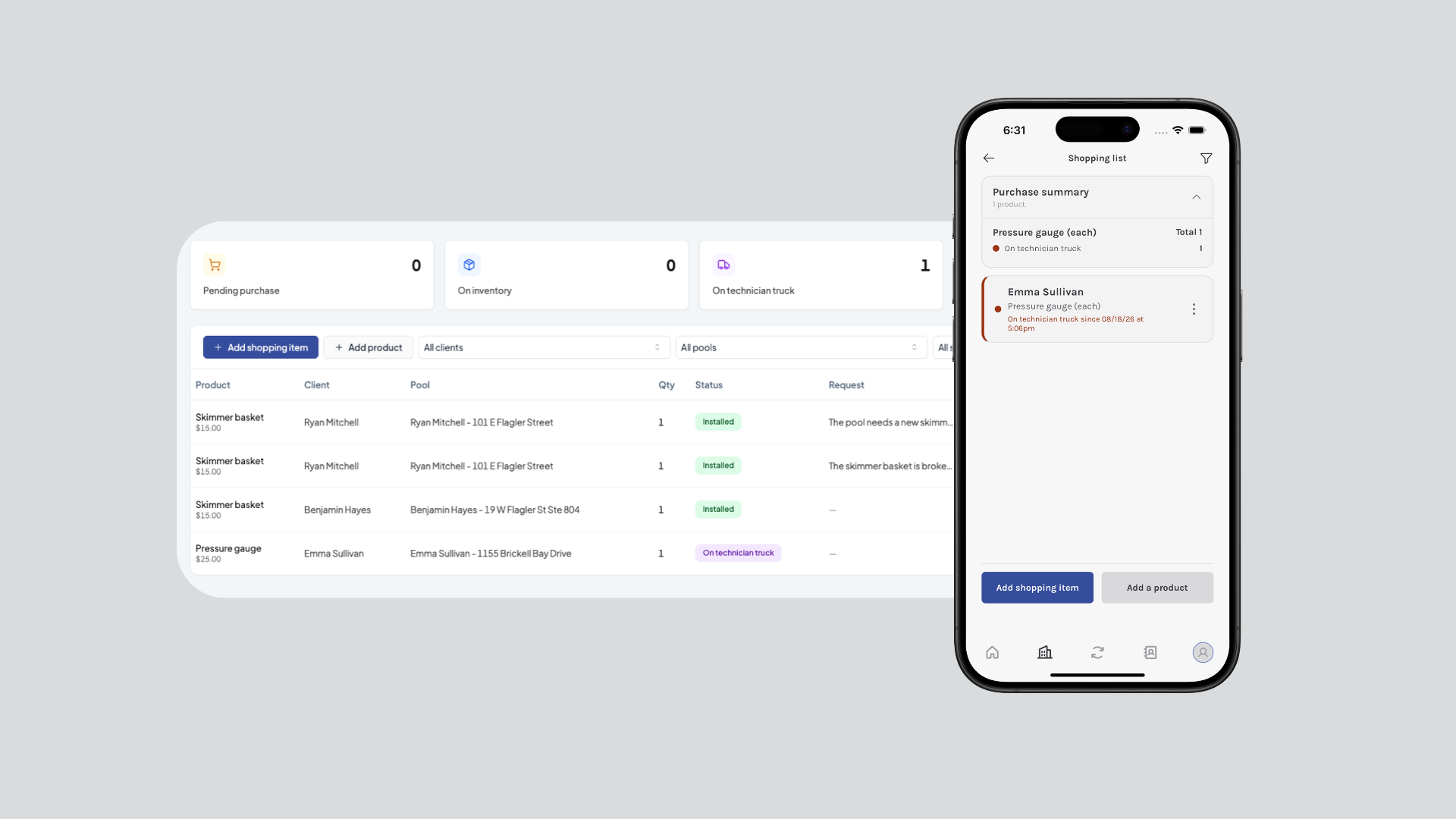
The shopping list groups rows as Pending purchase, On inventory, and On technician truck. Each row shows the product, the client, the pool, the quantity, the status, and the request.
4. Install the part in the field
The technician opens the service. The service sections stay in place, including photos. The shopping list item sits at the bottom left.
Open the item. A pump lid o-ring that has not been bought yet shows as pending purchase.
After the part is purchased, set the status to On inventory or On technician truck.
When the o-ring is installed, mark the item installed. Aquatechy asks for a photo from the camera or from the gallery. Take the photo, tap Use photo, and save.
On the web panel, the shopping item shows Installed. The photo can be downloaded from there. The estimate remains linked to the request the technician opened.
The owner or the office can review the same job on the phone. Open the Office tab, then Requests. Filter by Client notified and open the client. Photos from the request and photos from the shopping item are both on that screen. The request can be updated there, including the outcome text.
5. Email the client
On the request, click Email client.
Aquatechy fills in a template. The text can be edited, or cleared and replaced with Thank you for your business.
Select the photos from the job, including the install photo, and send the email.
The message goes to the client from Aquatechy. The office is copied, so the same email arrives in the company inbox.
Before you leave
- Update request has to be clicked after an outcome or status change. Until then, the technician still sees the previous request.
- Link the estimate to the current request. An older request stays selected until the link is changed.
- Save as draft holds the estimate until it is sent. The estimate email can be sent again.
- Accept on behalf creates the invoice when the office accepts for the client.
- Leave the request attached on the shopping item. That attachment shows which request the part came from.
- A new shopping item stays Pending purchase until it moves to On inventory or On technician truck, and then to Installed.
- Marking the item installed asks for a photo from the camera or the gallery. The photo is not on the shopping item until it is saved.
- Email client sends the text that was kept and the photos that were selected. The office is copied on that email.