
Aquatechy splits “what always happens” from “what happens on one calendar day.” Assignments is where recurring routes live: which technician, which pool, which weekday, and how often. Schedule is a calendar view of visits on one date you pick—moves and deletes there only affect that day, not the whole repeating route.
Use Routes in the sidebar: Assignments (/routes/assignments) for recurring work, Schedule (/routes/schedule) for day-specific changes.
Assignments vs Schedule — read this once
| Assignments | Schedule | |
|---|---|---|
| What you're editing | The assignment — the recurring rule (technician, pool, frequency, weekday, order on the route). | Services — the actual visits on one day you pick at the top. |
| What changes affect | Future weeks that follow that rule (until you change or delete the assignment). | Only that day's visit (or the group you move together from Schedule). |
| Good for | Setting up routes, reordering stops, moving a whole recurring job to another tech or weekday. | Covering a sick day, moving today's stop without changing every future week, skipping one visit. |
If you move a stop on Schedule, you are not automatically changing the recurring assignment in Assignments—think of Schedule as today's list, Assignments as the pattern that repeats.
Part 1 — Assignments (recurring routes)
Open Routes → Assignments (/routes/assignments). At the top you have weekday tabs (Sunday through Saturday), a Member dropdown to pick which technician's route you're looking at, a map, and the list of stops for that weekday.
Create a recurring assignment
- Click the weekday tab where this pool should normally run.
- In Member, choose the technician who should own this stop (if it's not already the right person).
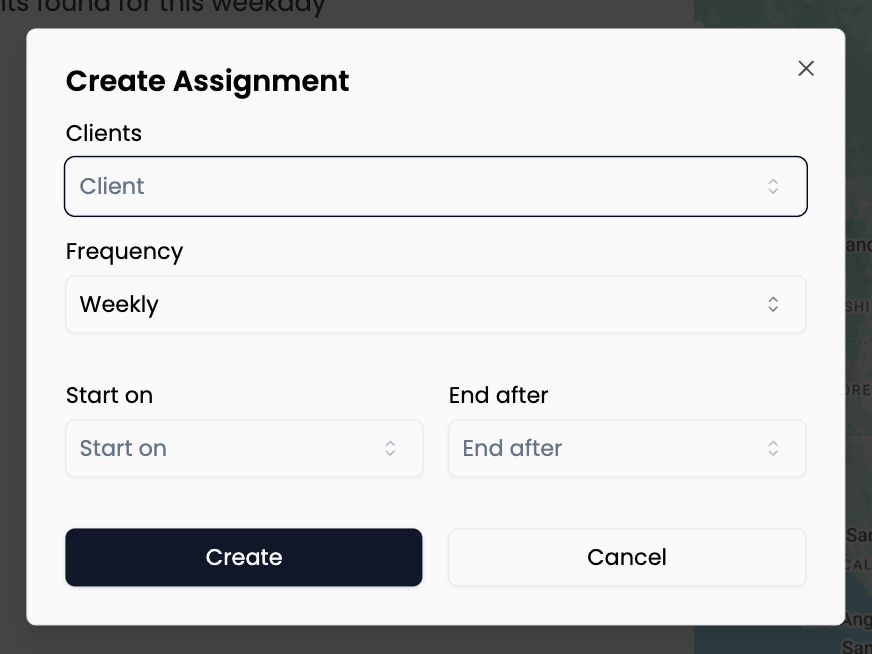
- Click New Assignment.
- Choose Client → Location (the pool) → Service Type. Add Instructions if the job needs extra notes (some service types hide this).
- Set Frequency. For a repeating route, fill Start on and End after. For a single visit that doesn't repeat, pick Once and set Scheduled to to the date you want—that still starts from Assignments, but it only runs once.
- Click Create to save, or Cancel to leave without saving.
That pool shows up in the list for that technician on that weekday.
When you'd use this
- New weekly (or biweekly) customer — You just sold ongoing service; add them here so every future week is covered automatically.
- Same customer, second weekday — They want Tuesday and Friday; add a second assignment (or use your usual workflow for two days).
- One-off opening or start-up visit — You want it on the calendar but not every week: use Once and the date here instead of building a fake repeating rule on Schedule.
Reorder stops and save the route
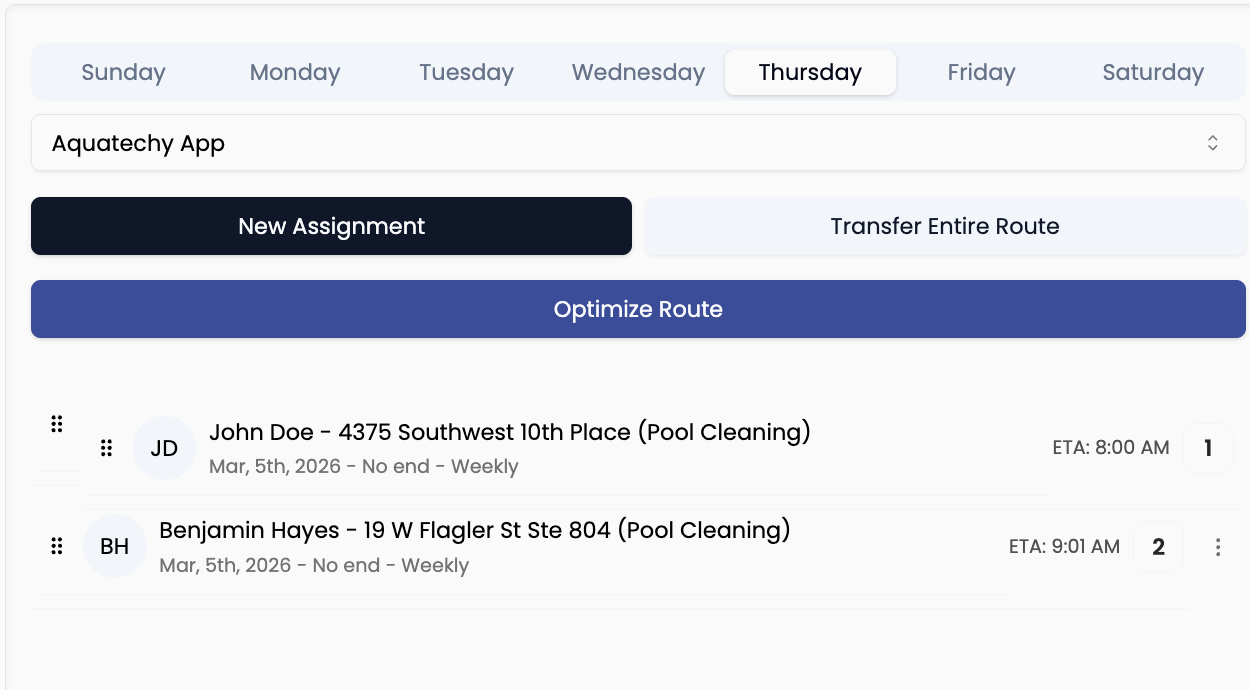
Drag rows to change stop order. Click Optimize Route if you want the app to suggest a better order (you can set first/last stop if needed). When you've changed order or optimization, click Save so drive times update—Save only shows up after something changed.
When you'd use this
- Save time and fuel — You noticed backtracking; reorder or optimize so the day makes geographic sense.
- Customer preference — Someone needs to be first or last on the route; drag them into place, then Save.
Transfer an entire weekday route
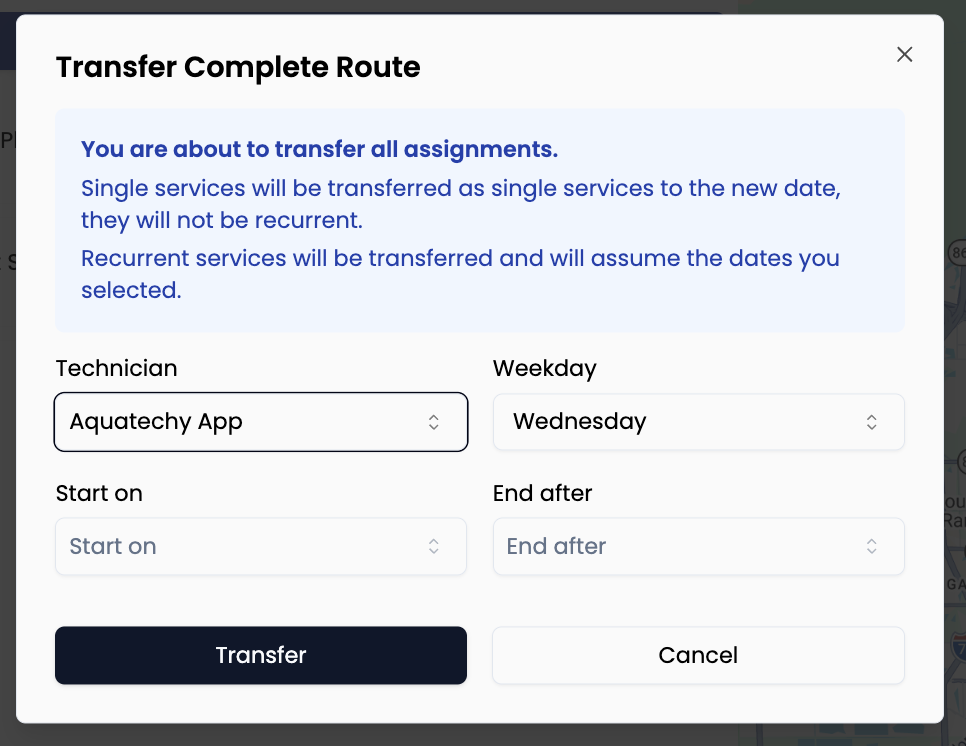
With the right weekday tab and Member selected, click Transfer Entire Route. Pick where the whole day's recurring stops should go, then confirm. Every assignment listed for that tech on that weekday moves together.
When you'd use this
- Vacation or leave — Alex is out all Thursday; give the whole Thursday route to someone else for good.
- New hire takes over a day — One person now owns every Tuesday on that route; move the full day in one shot.
Move one recurring assignment
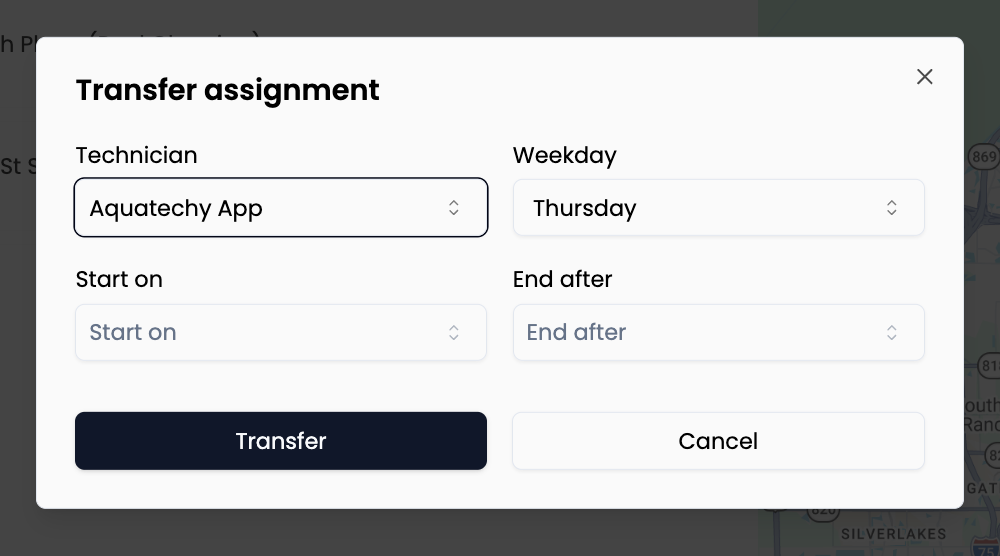
On the row for that pool, open the ⋮ menu → Transfer assignment. Choose the new Technician, Weekday, and either a single Scheduled to date or Start on / End after for a new repeating pattern, then click Transfer.
When you'd use this
- One pool switches techs — Jordan takes over this customer from Chris, every week on the same day.
- Move a stop to another weekday — This customer asked to move from Wednesday to Friday for the whole season.
Delete a recurring assignment
Open ⋮ on the row → Delete assignment. Read the warning, then Delete if you're sure, or Cancel.
When you'd use this
- Customer cancels service — They're not coming back; remove the repeating job entirely. Services already done are kept in the history.
This removes the whole repeating rule, not just one week's visit. If you only want to skip one week, use Schedule (below) instead.
Part 2 — Schedule (one day at a time)
Open Routes → Schedule (/routes/schedule). Pick a date at the top (you'll see today and nearby dates), then Member to see that technician's list for that day only.
Add a visit for one day only
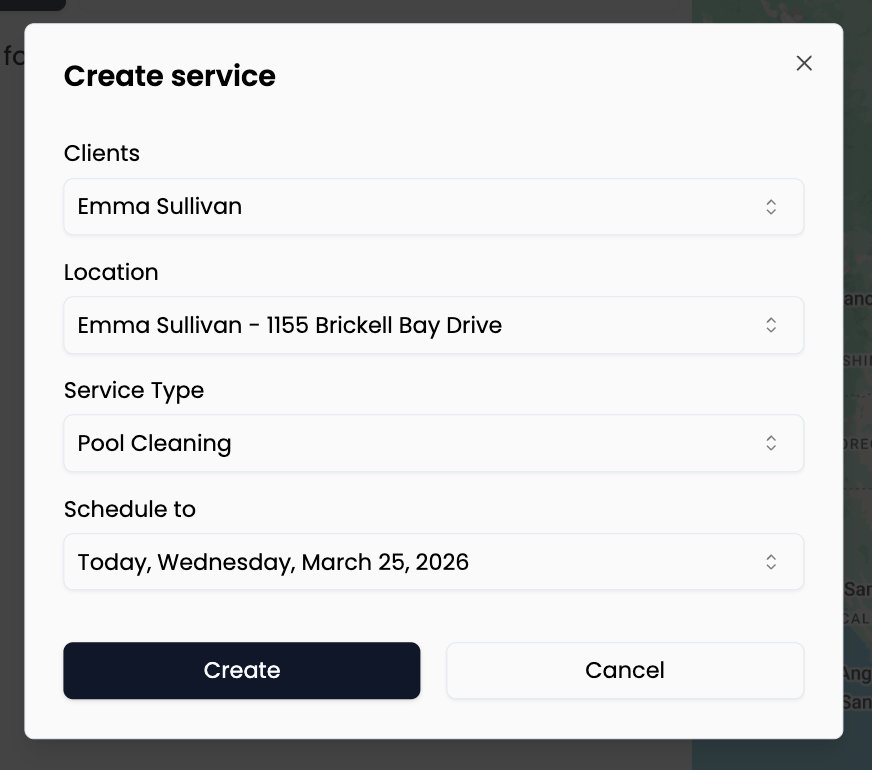
- Pick the date and Member (technician) who should do the work.
- Click New service.
- Choose Client → Location → Service Type, add Instructions if needed, then set which day this single visit runs (the date field for that visit).
- Click Create to save, or Cancel to leave.
When you'd use this
- Extra visit this week — Customer wants a one-time chemical check that isn't part of their normal weekly assignment.
- Makeup after a skip — You're adding a catch-up visit on a specific day without changing their normal route pattern.
Move one visit (this day only)

On that visit's row: ⋮ → Transfer Service. Choose the new Technician, Weekday, and Schedule to date, then Transfer. Use Cancel if you change your mind.
When you'd use this
- Someone's sick today — Move just today's stop to another tech or another day; next week the normal assignment still runs as before.
- Customer asks to bump one appointment — Only this Tuesday's visit moves to Thursday; you aren't rewriting their whole recurring Tuesday rule.
Delete one visit (this day only)
⋮ → Delete service. Confirm with Delete or back out with Cancel.
When you'd use this
- Customer cancelled just this week — They're on vacation; remove this week's visit but keep them on the route afterward.
- Weather or truck issue — You cancelled today's stop and don't want it sitting on the list as a false to-do (your office may still record billing separately).
This does not remove the recurring assignment from Assignments—only that one dated service.
Move every visit on this day at once
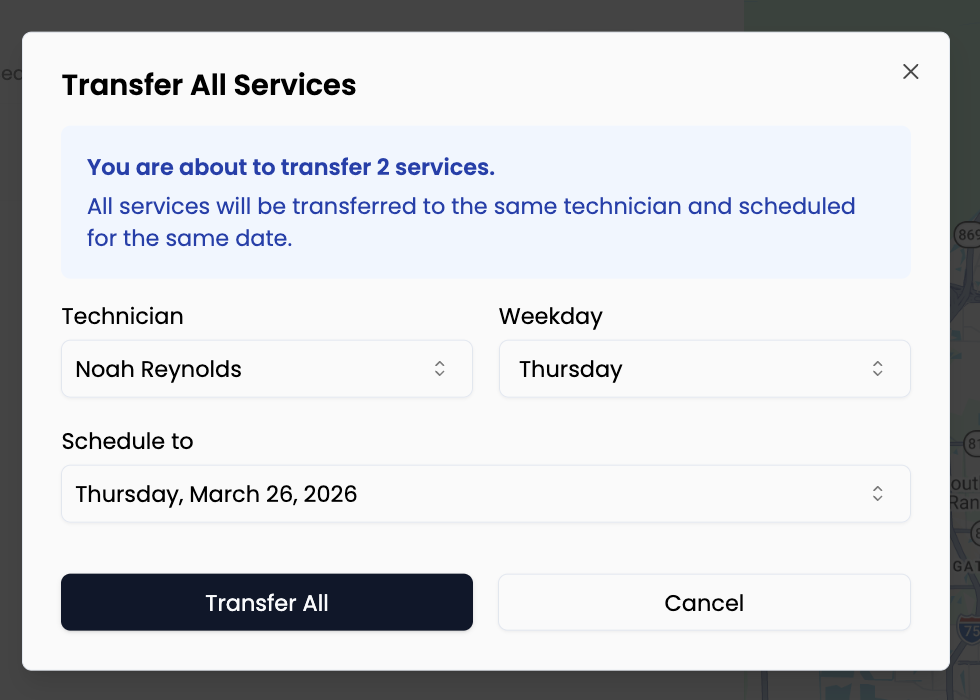 Click Transfer All Services. Choose one technician and one new Schedule to date for everything on the list for the date you're viewing, then Transfer All. If the list is empty, the button won't run.
When you'd use this
- Rain day — You're sliding everyone on that crew's list to tomorrow or the next open day.
- Whole team rerouted — One big reschedule instead of moving rows one by one.
If only one stop should move, use Transfer Service on that row instead.