This guide walks you through a normal day in the app: signing in, seeing your route, opening a job, finishing or skipping it, reporting filter or other activity when needed, and keeping everything in sync with the office.
Signing in
When you open the app, you land on the sign-in screen. Enter the email and password your company gave you, then sign in.
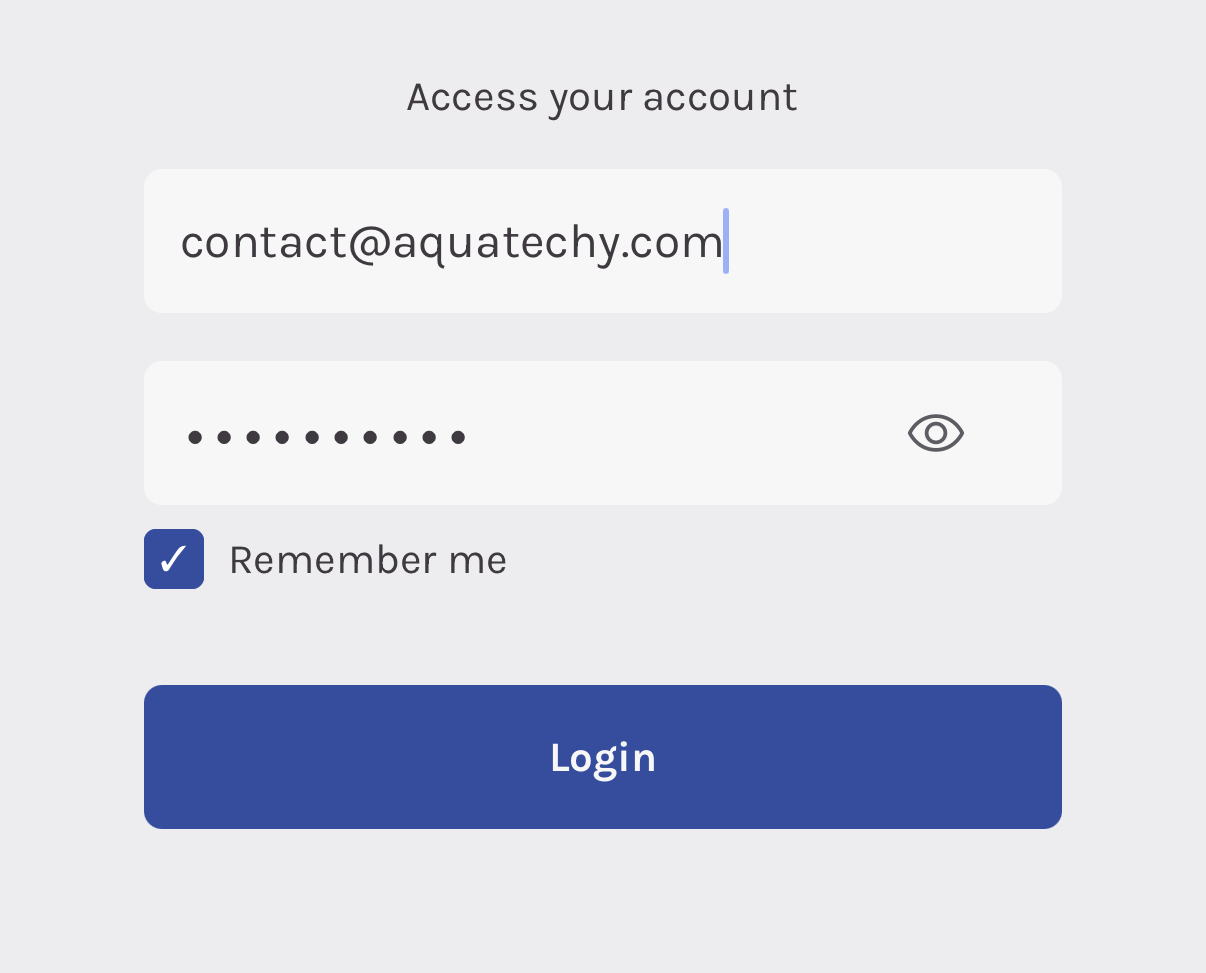
If your device offers to remember your login, you can use that so you do not have to type everything every time. Once you are in, you will see the main part of the app with the bottom bar (Home, and other shortcuts we explain below).
Choosing Google Maps or Apple Maps (Profile)
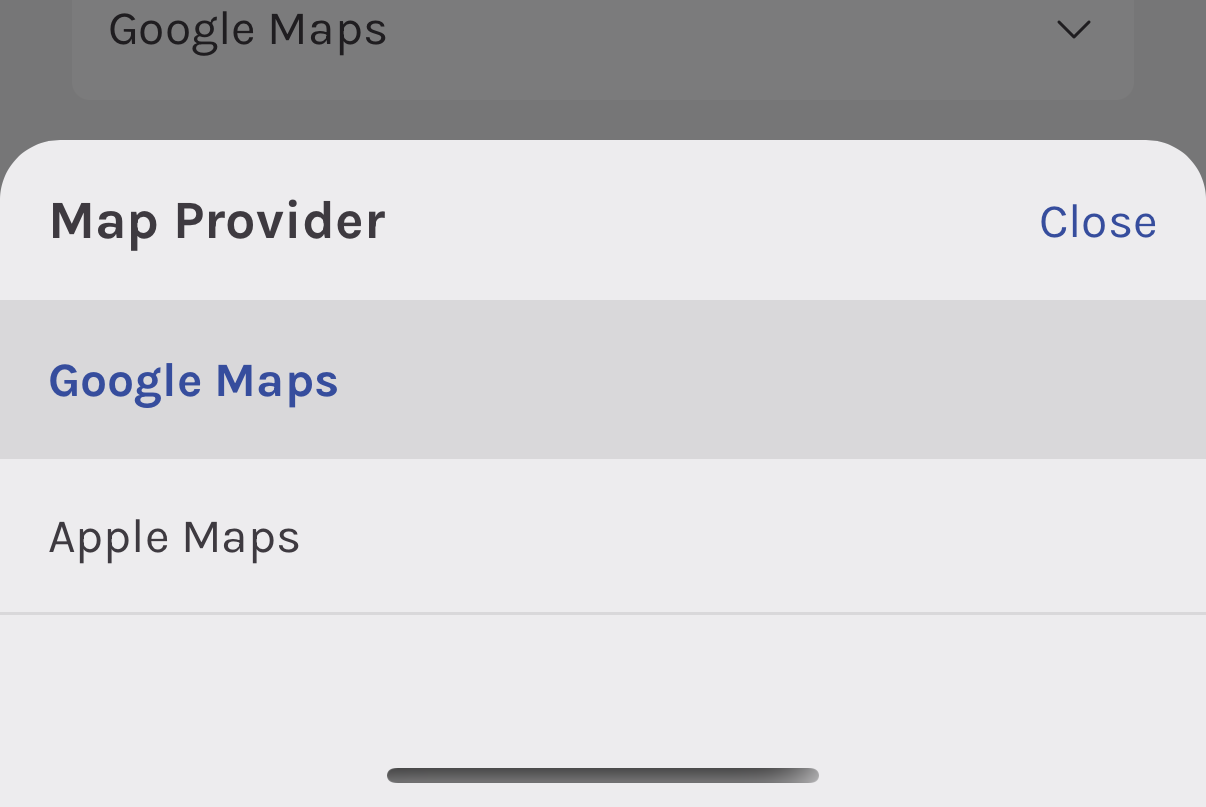
Directions from the app open in a map app on your phone. You can choose which one you prefer.
- Tap Profile in the bottom bar (avatar icon).
- Tap Change profile (the option that opens your account details).
- Find Map Provider (it may show as a dropdown next to Language).
- Choose Google Maps or Apple Maps.
- Tap Update to save.
After that, whenever you open directions from Home, a job, or other screens that use maps, they will use the provider you picked—whichever you find easier while driving between pools.
Home: your map and today’s stops
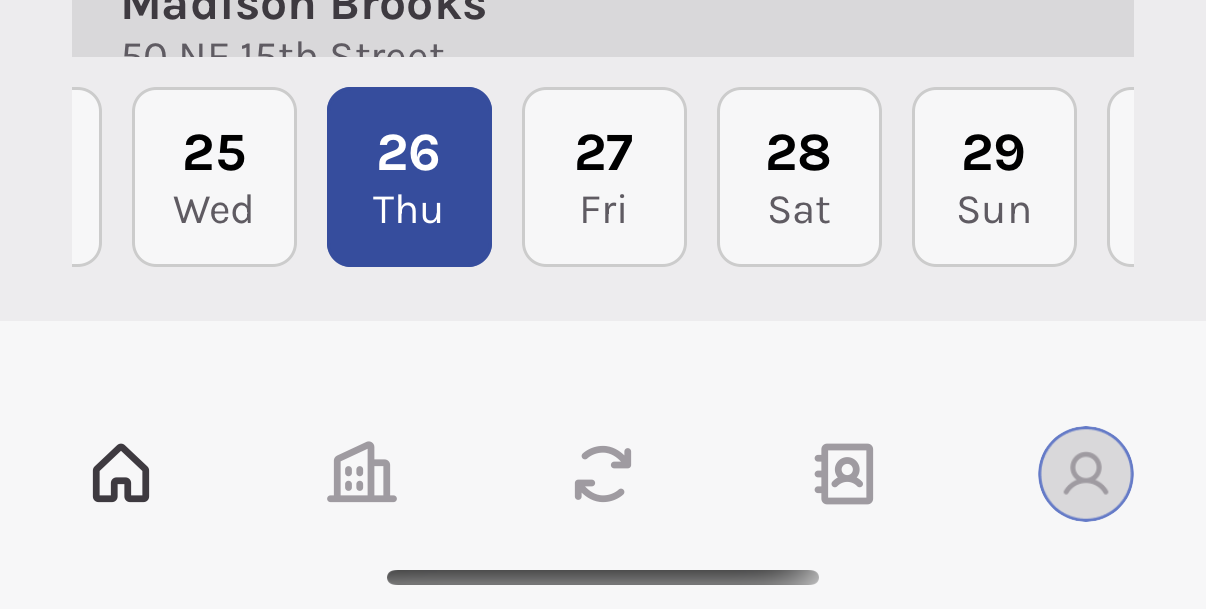
Tap the house icon in the bottom bar to open Home. That is your starting point every day.
At the top you will usually see a map with your pools for the day. Below that you get a summary of how many stops you have total, how many are done, skipped, or still left, and a shortcut to Organize Routes if your company uses route ordering.
Use the calendar to pick the date you are working. The list under the map shows every service scheduled for that day, in route order. Each row is one stop: pool name, address, and useful notes (gate codes, which side to enter, pool type, pets, filter reminders, and so on).
Important: Your pool job details are not saved until you tap Mark as done, Update, or Skip—leaving the screen any other way discards what you entered.
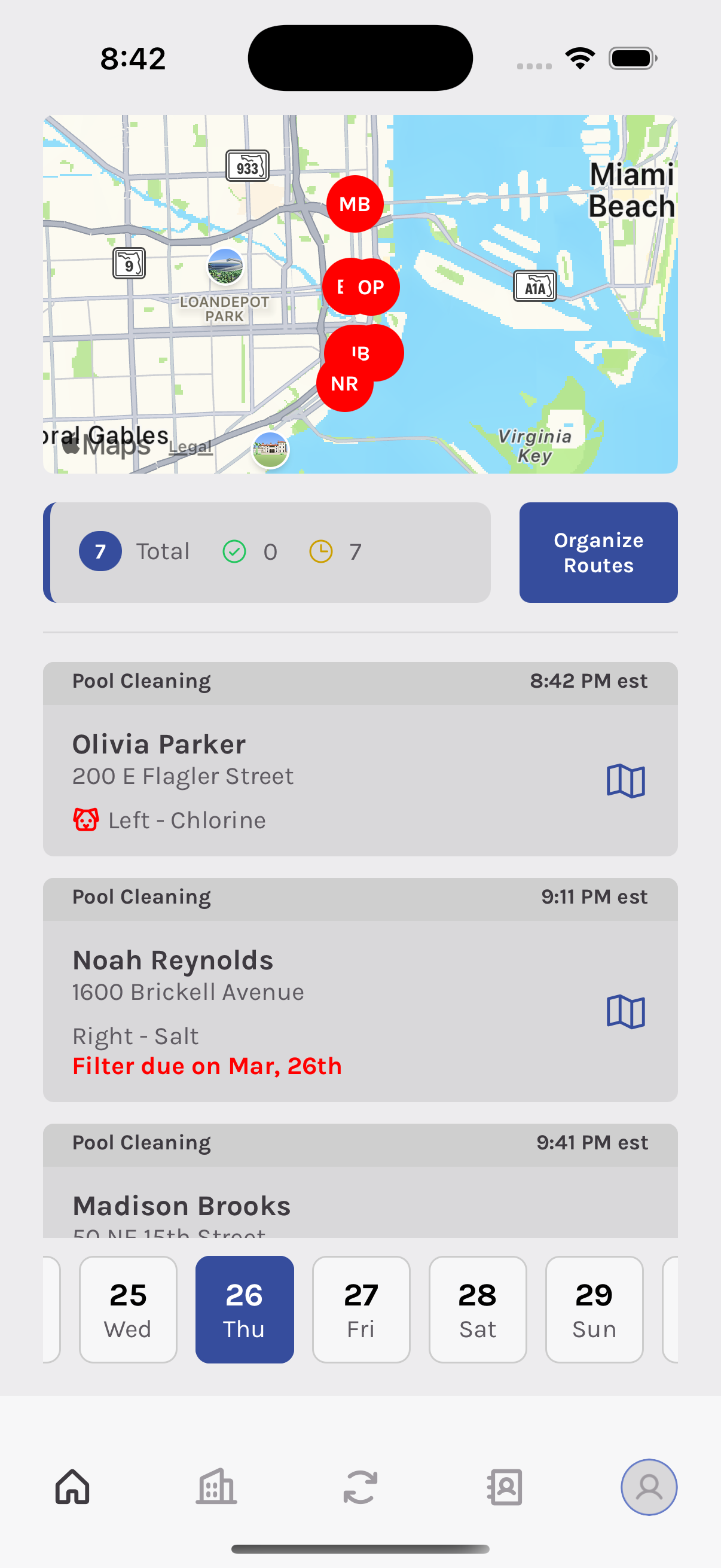
To open a job: tap the main area of that row (the pool name and address—not the small action buttons on the side). That takes you to the job screen for that service—the place where you record chemistry, checklist, photos, and mark the visit complete or skipped.
Organize Routes
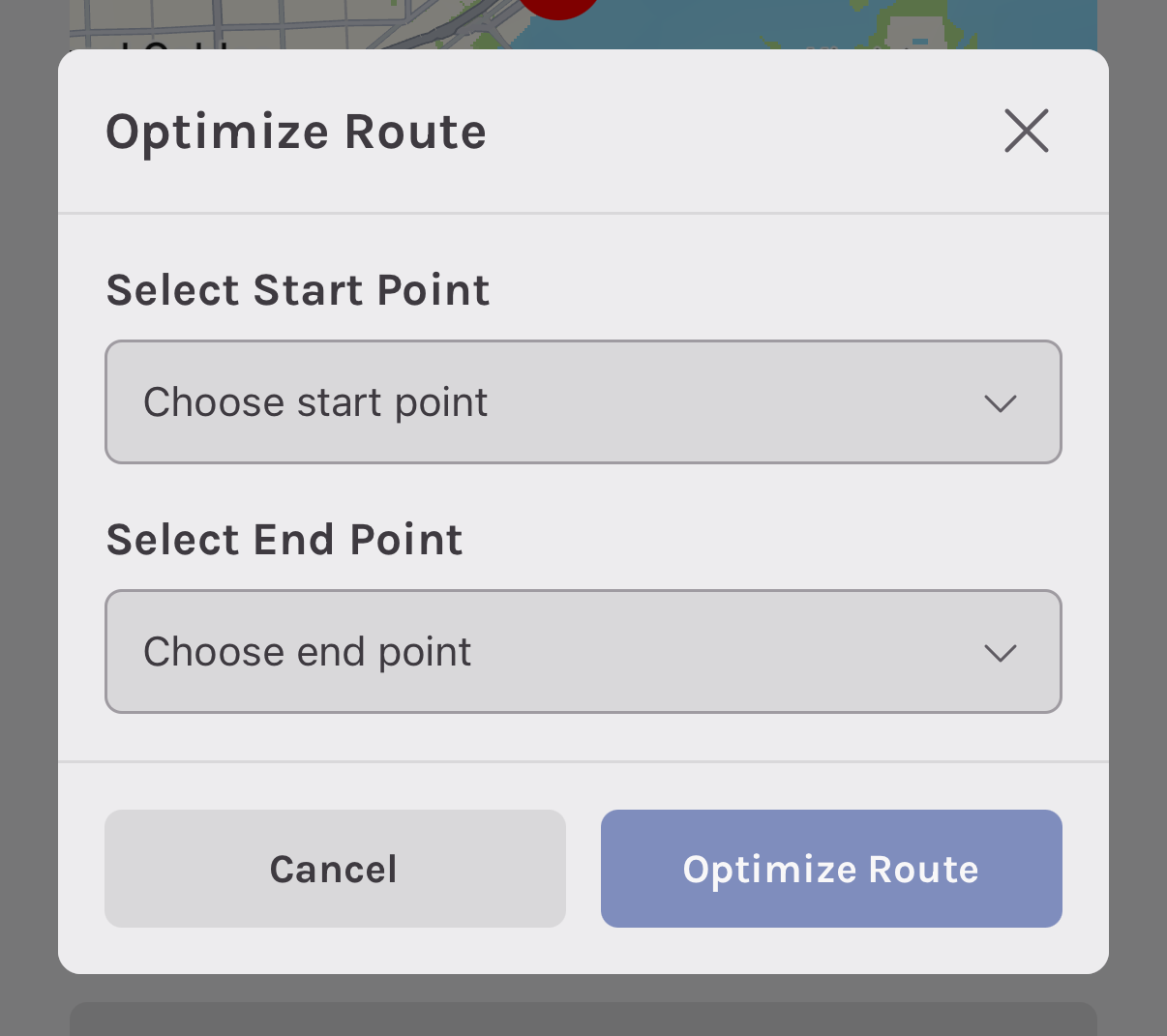
You can reorder the stops on the route by clicking the Organize Routes button and then moving the stops to the desired order or clicking the Optimize Route button to optimize the route for the shortest drive time by chosing the first and last stop.
The job screen: finish the visit or skip it
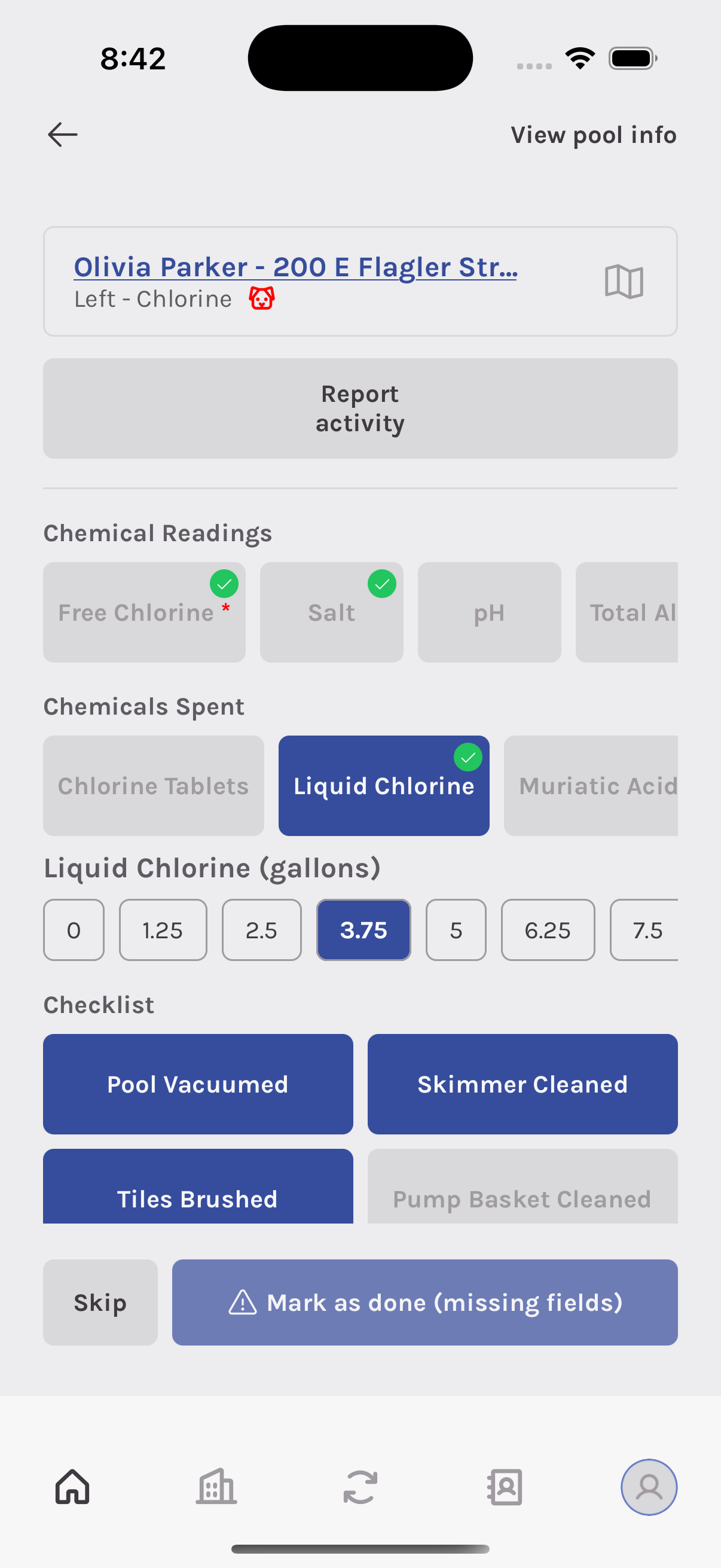
Important: Your pool job details are not saved until you tap Mark as done, Update, or Skip—leaving the screen any other way discards what you entered.
On the job screen you fill in whatever your company requires: readings, chemicals used, checklist items, photos, and notes. Required items depend on how your route is set up; if something is missing, the app will tell you before you can mark the job done.
Mark as done
When everything required is filled in, use Mark as done (or Update if you are changing a visit that was already completed or skipped). The app saves your work and sends you back to Home so you can go to the next stop.
If required fields are still empty, the button may say that you are missing fields—complete those first, then try again.
Skip a stop
Sometimes you cannot service a pool (locked gate, customer canceled, weather, etc.). Tap Skip. You will be asked to choose a reason from the list—pick the one that fits, confirm, and the visit is recorded as skipped. The app then returns you to Home.
Skipping still counts as “handled” for your day so your list and stats stay accurate.
Report activity — issues and filter work
This screen is titled Report activity in the app. You open it from a specific pool visit (the job screen for that service), not from the home list by itself.

How to get there
- On Home, open the pool job the way you normally do (tap the stop in your list).
- On that job screen, look for the Report activity button and tap it.
You will see the pool name already filled in—you do not need to change it. Use the back arrow at the top if you need to leave without sending anything.
What to choose under Category
Tap Category and pick what you are reporting:
| Option | When to use it |
|---|---|
| Other | General problems or notes: equipment acting up, damage, access issues, or anything that is not specifically filter cleaning or replacement. |
| Filter cleaning | You cleaned or backwashed the filter during this visit (or you are reporting that filter cleaning was done). |
| Filter replacement | You replaced the filter or are reporting a filter replacement. |
Add a Description if it helps the office or the homeowner—this field is optional, but a short note is often useful for Other.
Photos
Tap the camera area to take pictures or add photos from your gallery. You can add more than one and remove a photo with the trash icon on it if you picked the wrong one.
Important: If your company requires photos for filter work, the app will ask for them when you pick Filter cleaning or Filter replacement—and the main button may say Report activity (photos required) until you add at least one photo. If you are not sure, add a clear photo of the filter area anyway; it helps the record stay complete.
Send it
Tap Report activity at the bottom. When it goes through, you will see a confirmation that the activity was reported, and you will return to the job screen.
Like completed visits, your report is queued on the phone first and then syncs to the server when you have a connection—use the sync tab or Profile → Syncronize if you need to push pending items manually.
That is all you need to log an issue or filter-related activity from the field.
Sync: how your phone talks to the server
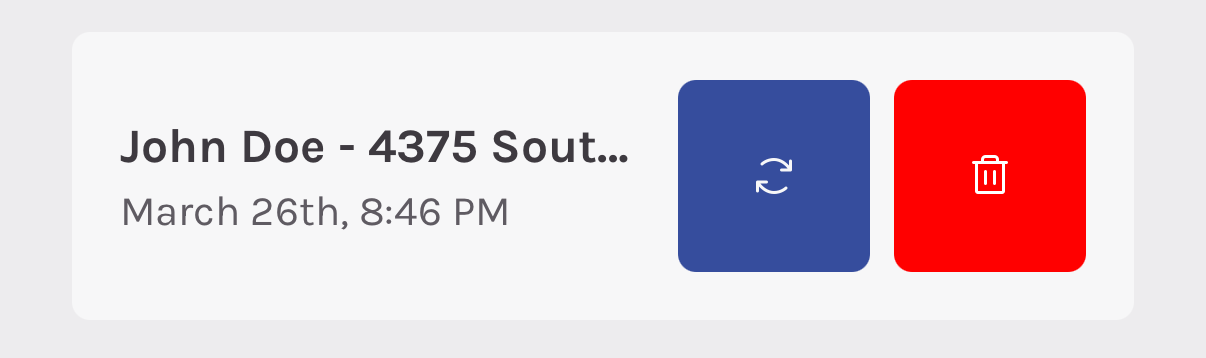
The app is built so you can work even when the signal is weak. When you finish or skip a visit, that information is saved on your phone first and then sent to Aquatechy’s servers when the connection is good. That sending process is what we call sync.
Where to find sync
The sync process happens automatically in the background when you are online every few minutes. However, you can also manually sync.
- Sync tab (circular arrows): In the bottom bar, tap the icon that looks like circular arrows. That opens the sync screen. If anything is still waiting to upload, you will see it listed here. You can run a full sync from this screen, or sometimes sync one job at a time if your company’s setup shows those options. When everything is caught up, you will see a message like “All up to date.”
What you should know as a pool tech
- Good Wi‑Fi or cell data helps sync finish faster.
- If something fails, try again from the sync tab or Profile when you have a better signal.
- Until sync succeeds, your completed or skipped work is still on your phone; do not panic—just connect and sync when you can.